
Discover our WordPress theme’s built-in review system, designed to seamlessly integrate user feedback into your articles, enhancing engagement and providing valuable insights.
Here’s a brief introduction to this feature for your reference.
Below is a step-by-step guide on how to use the Review System.
-
Enable Review System
In the Post Settings page, under the content section, you’ll find the Review System panel. Simply check the “Enable Review” box to start adding your review content.

-
Setup Editorial Review
Once you enable the Review feature, the settings fields will appear below the checkbox.
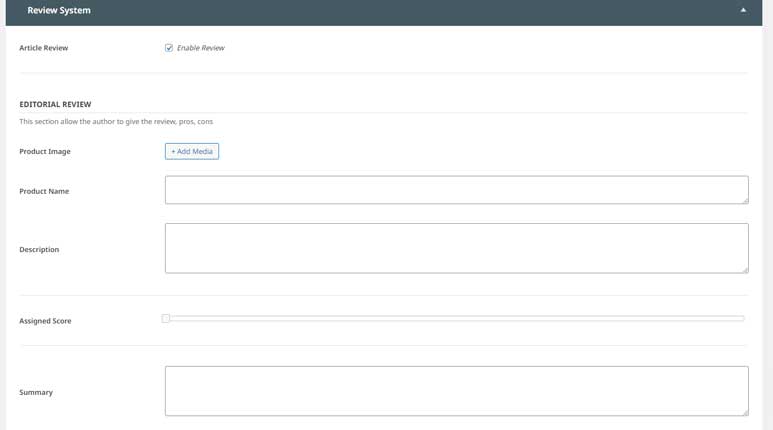
The first group is Editorial Review which allow you to add a quick review for your product.
Here are the key options:- Product Image: Upload an image of your product. The recommended dimensions are 120x120px.
- Product Name: A text field to enter your product name.
- Description: A text field to add a short product description.
- Assigned Score: A slider to set the review score for your product.
- Summary: A text field to provide a brief summary of your review
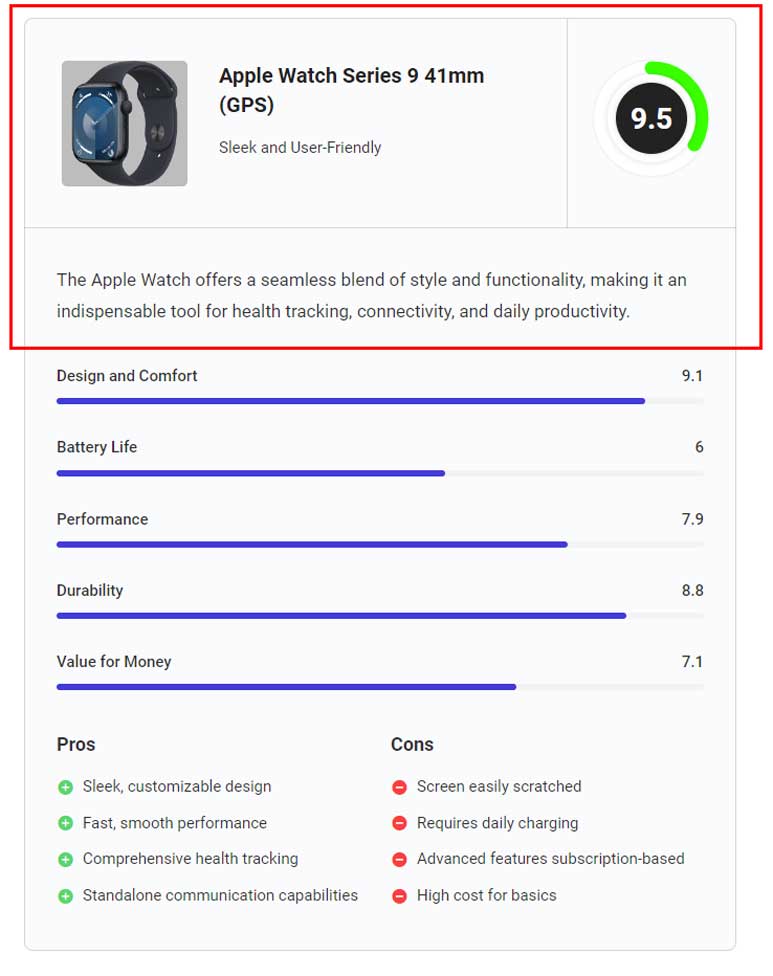
The image above shows the result, highlighted in the red rectangle, after completing the first group.
-
Setup Pros & Cons
Next, we’ll move on to the group: Pros & Cons. Check the “Pros & Cons” box to enable this feature and reveal its settings panel.
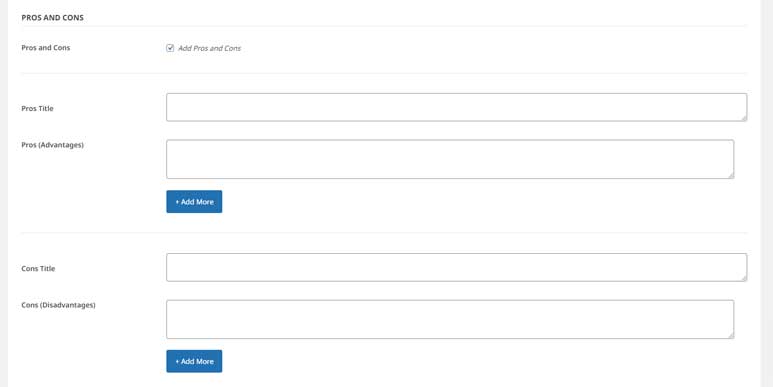
Here are the key options:
- Pros Section: This section includes a Pros Title and Pros Content field where you can enter your content. You can add more Pros Content fields by clicking the “Add More” button.
- Cons Section: This section includes a Cons Title and Cons Content field where you can enter your content. You can add more Cons Content fields by clicking the “Add More” button.
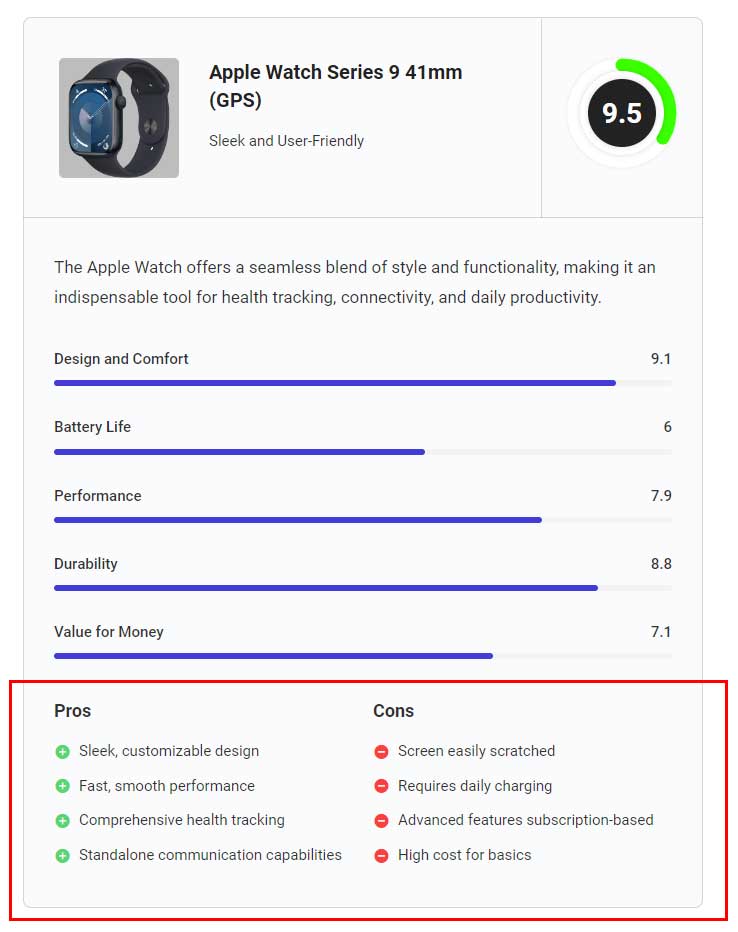
The result is shown in the image below, highlighted in the red rectangle.
-
Setup Editor’s Criteria
Next, we’ll move on to the group: Editor’s Criteria. Check the “Add the Criteria” box to enable this feature and reveal its settings panel.
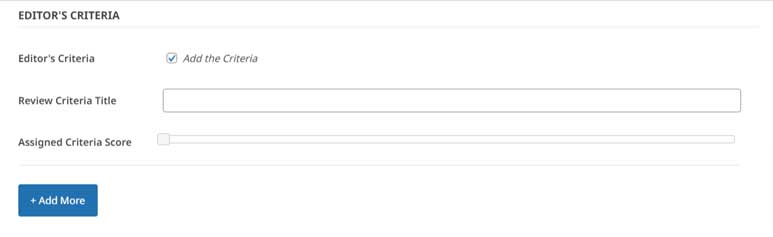
Each criteria item has two fields: Title and Score, as shown in the image above. You can add more criteria items by clicking the “Add More” button.
The result is shown in the image below, highlighted in the red rectangle.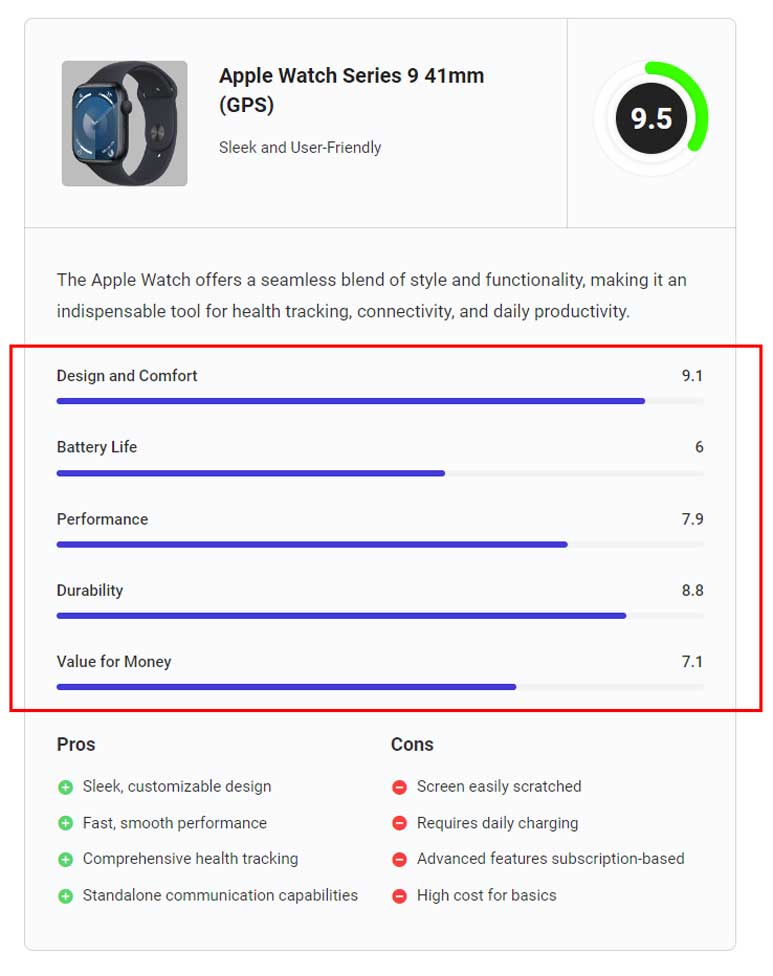
-
Setup Reader Review
Next, we’ll move on to the feature: Reader Review. Simply click on the checkbox “Enable Reader Review” to enable this feature

The Reader Review section can be configured in the Theme Options panel. Navigate to Theme Options > Single Page Settings > Reader Review, as shown below.
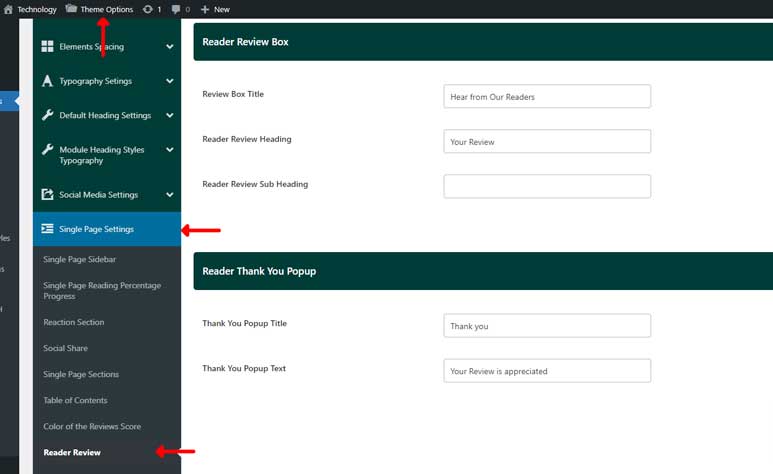
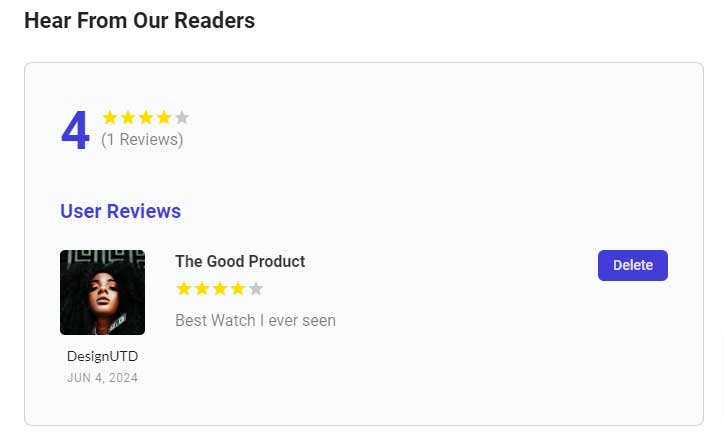
The right side contains the setting fields for the Reader Review Box. After applying your settings, you’ll see the result on the front end, as shown below.
- Please take a look at the demo page here to see how the article review feature works